
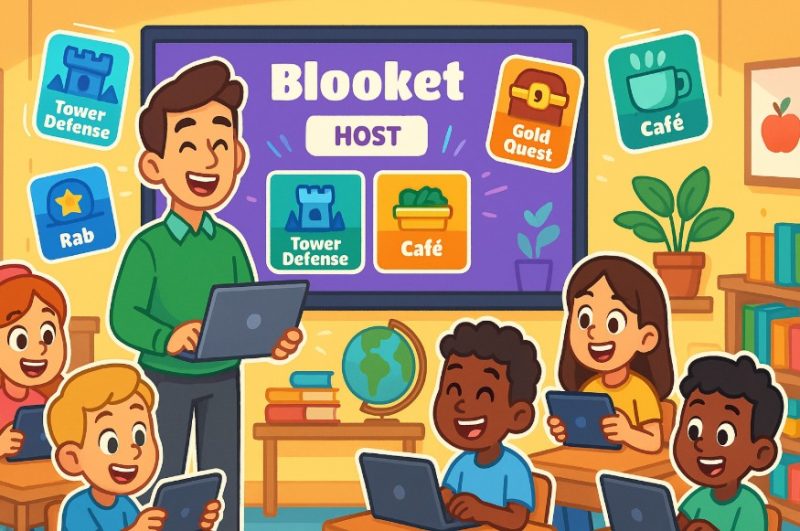
Blooket is an interactive, gamified learning platform that turns traditional quizzes into engaging classroom experiences. As a Blooket host, you can manage and facilitate these educational games, creating a dynamic learning environment for students.
With its fun game modes and easy-to-use interface, Blooket makes it simple to craft quizzes that promote active learning.
In this guide, you’ll discover how to host a Blooket game, customise quizzes, and maximise its features to create memorable learning sessions.
Whether you’re a teacher or a tutor, understanding how to leverage Blooket’s tools can transform your classroom activities into interactive adventures.
What Is Blooket Host?
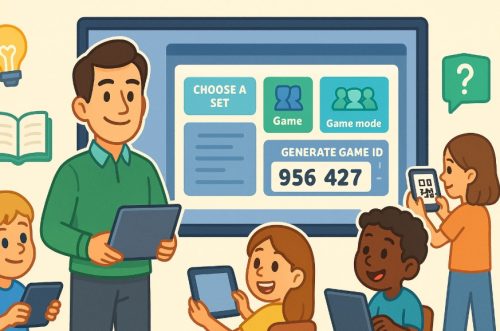
A Blooket Host is the person who initiates and manages a game session on Blooket. Typically, teachers or educators assume the role of a host to facilitate interactive learning activities.
When hosting a game, you have complete control over the quiz content, game mode, and participant settings. As the host, you are responsible for selecting question sets, generating a unique game code, and sharing it with students for them to join.
Blooket hosts also manage the game’s progress, ensuring smooth transitions between questions and monitoring student participation. They can view real-time analytics, such as the number of correct answers and student performance.
Moreover, hosts can decide whether the game runs live in the classroom or is assigned as homework for students to complete at their own pace.
How Does Blooket Host Work?
To host a game on Blooket, the process begins with choosing or creating a question set. After selecting the game mode, the host clicks “Host Game,” which generates a unique game code. This code is shared with participants who join the game through Blooket’s platform.
The host manages the game’s progress, including starting, pausing, and ending the session. They can also adjust settings during gameplay, such as enabling or disabling late joining.
Once the game is complete, the host has access to detailed reports, which provide insights into student performance, accuracy, and areas that may need improvement.
Why Should You Use Blooket for Classroom Quizzes?
Gamified Learning Experience
Blooket transforms traditional quizzes into exciting games that keep students engaged. The interactive game modes, like Tower Defense and Gold Quest, turn learning into a competitive experience that students enjoy.
This gamification encourages participation and helps maintain focus throughout the quiz session.
Real-Time Engagement and Feedback
One of Blooket’s standout features is real-time feedback. Students can instantly see their progress and compete with classmates, motivating them to stay attentive and perform better.
For teachers, it provides immediate insights into student understanding, allowing for quick adjustments if needed.
Customisation and Flexibility
Blooket is incredibly flexible. Teachers can create custom question sets tailored to specific subjects or use pre-made sets available on the platform.
Additionally, Blooket games can be hosted live or assigned as homework, giving educators the option to fit quizzes into any schedule.
Data-Driven Insights
After a game ends, hosts receive detailed reports that break down student performance by question and topic. This data helps educators identify knowledge gaps and address them in future lessons, ensuring better learning outcomes.
How Do You Create a Blooket Host Game?
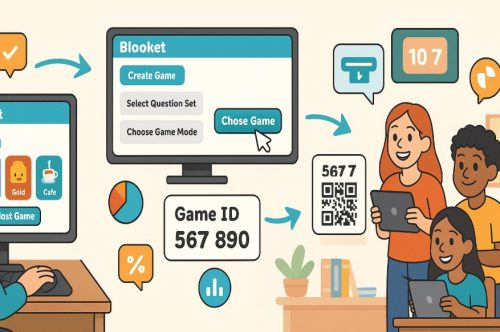
Creating and hosting a game in Blooket is a straightforward process. Follow these steps to get started:
- Create a Blooket Account: Sign up for a free account at com if you don’t already have one. This will allow you to access the host features and game settings.
- Find or Create a Question Set: Browse the Discover tab to find pre-made question sets created by other educators. Alternatively, click on Create to make your own set of questions that match your teaching objectives.
- Select a Game Mode: Choose a game mode that best fits your lesson plan. For instance, you might select Tower Defense for strategic learning or Gold Quest for competitive gameplay.
- Adjust Game Settings: Before starting, you can adjust settings like: Time Limits, Number of Questions, Randomised Questions, Power-Ups and Bonuses
- Host the Game: Click the Host button to launch your game. Blooket will generate a Game ID and a QR code that you can share with your students.
- Monitor the Game: Use the dashboard to monitor student responses, track scores, and control game flow.
- End and Review the Game: Once the game ends, you can view detailed analytics, including each student’s performance and overall class accuracy.
This simple process ensures you can launch educational games quickly and with minimal effort.
What Are the Different Game Modes in Blooket?
Blooket offers a wide range of game modes, each designed to make learning more interactive and exciting. Below is a breakdown of the most popular game modes:
| Game Mode | Description | Availability |
| Tower Defense | Defend your towers from waves of enemies by answering questions correctly. | Live, Solo, Homework |
| Gold Quest | Collect gold by answering questions and stealing from other players. | Live Only |
| Battle Royale | Compete against classmates in head-to-head battles. | Live Only |
| Crypto Hack | Answer questions to hack into other players’ points. | Live Only |
| Factory | Build a factory and produce products by solving questions. | Live, Solo, Homework |
| Café | Manage a café by serving customers based on correct answers. | Live, Solo, Homework |
| Classic | Traditional quiz-based competition. | Live Only |
| Fishing Frenzy | Catch fish by answering questions correctly. | Live Only |
| Monster Brawl | Battle monsters while answering questions. | Live Only |
Each game mode introduces a unique learning strategy, ensuring students remain engaged and challenged during gameplay.
How Can You Customise Your Blooket Quizzes?
Customising your Blooket quizzes is a powerful way to tailor learning experiences to your students’ needs. With a variety of tools available, educators can create dynamic, interactive games that align perfectly with lesson objectives and classroom styles.
Top Ways to Customise Blooket Quizzes
- Add Your Own Questions: Start fresh or use existing sets. Blooket supports multiple-choice, true/false, and visual questions for varied learning.
- Include Images and Media: Enhance understanding by adding images or GIFs. This is especially helpful in visual subjects like Art or Geography.
- Adjust Time Limits and Points: Set flexible time limits per question and assign custom points to reflect question difficulty and importance.
- Randomise Question Order: Keep gameplay fair by mixing up the order. This helps reduce memorisation and encourages real-time thinking.
- Enable Power-Ups and Bonuses: Activate game features like power-ups to boost excitement and strategy during competitive game modes.
With these options, Blooket allows teachers to move beyond basic quizzes and create personalised, fun learning environments that support student engagement and success.
How Do Students Join a Blooket Host Game?
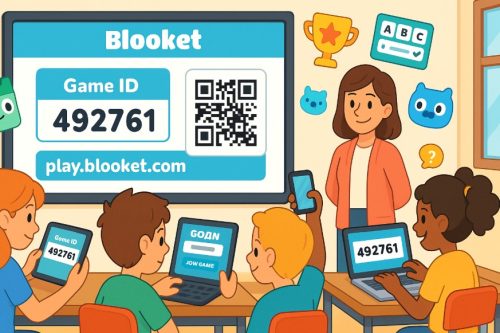
Joining a Blooket game as a student is incredibly simple and user-friendly, which is one of the platform’s major advantages. Here’s how students can join a session:
- Receive the Game Code or QR Code: When the host launches a game, a unique Game ID and QR code are generated. These are shared with the students, either written on the board or shared digitally.
- Visit the Blooket Join Page: Students head over to play.blooket.com, where they are prompted to enter the game code. Alternatively, they can scan the QR code for instant access.
- Enter a Nickname: Students can either use their own name or a nickname to participate. The host also has the option to enable Random Names to maintain privacy.
- Wait for the Game to Begin: Once all participants have joined, the host starts the game. Students then engage with the interactive quiz, answering questions to progress.
Joining a Blooket game is quick and hassle-free, ensuring that classroom time is maximised for learning rather than setup.
Can You Host Live and Homework Blooket Games?
Blooket provides two flexible hosting options: Live Games and Homework Assignments, each catering to different classroom scenarios.
Live Games
In a live game, students participate in real-time, competing against each other as the teacher hosts the session.
This mode is ideal for classroom activities where instant feedback and active participation are required. Teachers can monitor student responses as they happen, offering opportunities for on-the-spot teaching and correction.
Homework Mode
Homework Mode allows students to complete Blooket games outside of classroom hours. Teachers assign a Blooket game, generate a Game ID, and share it with students to complete at their convenience.
Students log in, complete the game, and their scores are recorded for teacher review. This flexibility allows for independent learning and reinforces concepts learned in class.
Both modes provide detailed reporting, enabling teachers to track student progress whether the game is played live or at home.
How Do You Track Student Progress in Blooket?
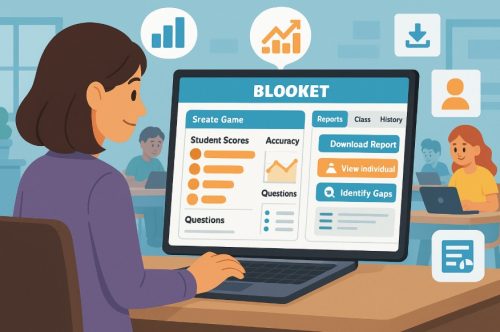
One of Blooket’s strongest features is its real-time reporting and analytics, which allows teachers to track student performance during and after the game. Here’s how you can effectively monitor progress:
Access Live Game Reports
After a live game concludes, Blooket generates a detailed report that summarises each student’s performance. You can access this report by clicking “View Report” in the game summary screen.
Access Homework Reports
For homework assignments, navigate to the Homework tab on your dashboard. Select the completed game, and you’ll be able to see each student’s score, the number of questions answered correctly, and the time taken.
Review Question-Specific Analysis
Blooket provides insights into which questions were the most challenging. This analysis helps you identify gaps in understanding, allowing you to revisit difficult topics in future lessons.
Monitor Individual and Group Performance
You can view how each student performed individually, as well as how the class did as a whole. This helps in understanding both personal and collective progress.
Download and Save Reports
For record-keeping or further analysis, you can download the results in PDF, Excel, or CSV formats. These reports can be useful for parent-teacher meetings or performance evaluations.
Identify Areas for Improvement
By reviewing the analytics, you can pinpoint which students may need extra support and which concepts require more practice.
Tracking student progress through Blooket not only saves time but also provides valuable insights for improving teaching strategies.
What Are the Best Tips for Hosting Successful Blooket Games?
To ensure that your Blooket sessions are smooth, engaging, and educational, follow these best practices:
- Set Clear Objectives: Start by explaining the game’s purpose, rules, and how students can earn points to keep them focused and motivated.
- Choose the Right Game Mode: Pick a game mode that aligns with your learning goals, Tower Defense works well for strategy, while Gold Quest suits competitive reviews.
- Test Your Internet Connection: Ensure both you and your students have a stable connection to prevent disruptions during gameplay.
- Encourage Participation: Boost engagement by offering small rewards or recognition for active involvement and top performers.
- Recap and Review After the Game: After the game, review frequently missed questions to reinforce learning and clear up any confusion.
These tips will help you run effective Blooket sessions that are not only fun but also highly educational.
Conclusion
Blooket Host transforms traditional learning into a fun, interactive experience that keeps students engaged and motivated.
Its wide range of game modes, easy setup, and real-time tracking make it a powerful tool for educators aiming to enhance classroom participation.
Whether you want to review classroom concepts, assess understanding, or simply make learning enjoyable, Blooket provides the perfect platform.
By customising quizzes and leveraging detailed reports, teachers can target learning gaps effectively. Start exploring Blooket today and watch your classroom transform into a vibrant learning environment.
FAQs About Blooket Host
Do you need a Blooket account to join a game?
No, students do not need a Blooket account to join a game; they can participate as guests using the game code. However, having an account allows for progress tracking and customisation.
Can you play Blooket games on mobile devices?
Yes, Blooket games are fully compatible with mobile devices, tablets, and PCs, making it accessible from anywhere. Students only need a browser to join the game.
Is Blooket suitable for all age groups?
Blooket is designed to be flexible and is suitable for a wide range of age groups, from primary students to higher education. Teachers can tailor question difficulty to match the students’ levels.
How many players can join a Blooket game at once?
Blooket allows up to 60 players in live game sessions with a free account, while premium accounts can host even larger groups. This makes it ideal for classroom settings of all sizes.
Are there any costs associated with hosting Blooket games?
Blooket is free to use, but it also offers premium plans that provide additional features like enhanced reports and expanded game modes. Most classroom activities can be managed effectively with the free version.
Can teachers track individual student performance?
Yes, teachers can track individual student performance through detailed reports, which include data on accuracy, response time, and overall scores. These insights help teachers identify areas for improvement.
How secure is Blooket for classroom use?
Blooket is built with student safety and privacy in mind, adhering to educational data privacy laws. It ensures that student data is protected during game sessions.