

One email client that is synonymous with the work communication is Microsoft Outlook. Its robust features are awesome. Its seamless integration with the MS Word is praiseworthy. Ever wonder what is behind the technical prowess of this email client.
Well, the backbone of this email client is PST (Personal Storage Table) files.
Often referred to as the core of this widely used email application, PST files hold all mailbox data such as emails, contacts, etc. Any corruption issue to these crucial data files (.pst) means a significant security threat to the important data.
‘Prevention is better than a cure’ is a golden rule and it applies in case of the maintenance of PST files as well. We must first understand what leads to PST files corruption.
If we unearth the reasons, we came across factors like oversized data files (.pst), sudden system shutdown, malware attack, and many others. Now the question arises how to fix such issue.
To address PST corruption, this email client is equipped with a built-in functionality called Scanpst.exe. This functionality runs multiple scans to ascertain errors and inconsistencies in file header and structure. Then it diagnoses and repairs its headers as well as the file structure.
Even though Scanpst is the built-in utility by Microsoft, it fails sometimes to fix all issues. How to repair Corrupt PST Files When Scanpst.exe Tools Fails. In such a scenario, we need to explore some professional PST Repair tool to fix a damaged Outlook PST file.
Understanding How Scanpst.exe Works
We can divide Scanpst process in 4 stages-Locate the PST files, Scanning the file, Repair Process, and Repair Completion. This utility scans and verifies the structure of PST file.
Follow the below steps:
Step 1: Locate the PST files: First Exit the Outlook and close all associated processes. Then go to the following locations to discover the Outlook data file (.pst):
| Outlook Version | Location |
| 2019/ 2016: | C:\Program Files (x86)\Microsoft Office\root\Office16 |
| 2013: | C:\Program Files (x86)\Microsoft Office\Office15 |
Double click the utility icon to browse it.
(Note: Location may differ as per the Office version you have. Alternatively, you can use Windows Search function.)
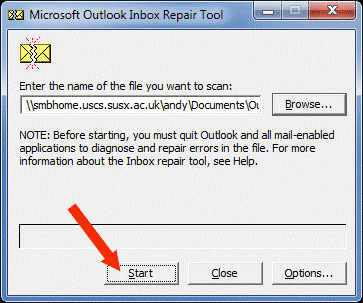
Step 2: Scanning Process: After opening the Scanpst app, you need to select the targeted file to initiate the scan process. This process passes through multiple phases and takes some time.
Scanning depends on the file size, if you are scanning a big file, then it will take some time. Similarly, smaller files take lesser time to scan. Follow the below steps:
- Navigate to the PST file that you want to scan.
- Hit ‘Options’ and then select ‘Scan Log.’
- Select ‘Start’ button to initiate the scan process. It will do structure analysis of the file and tell the user about the type of error.
Step 3: Repair Process: In case, the ScanPST.exe scan discovers some inconsistencies, then the user need to fix those issues. First take the backup of the data file (.pst). Now choose ‘Repair’ to initiate the process.
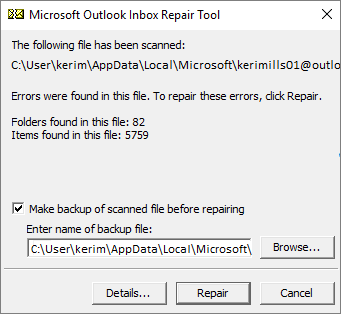
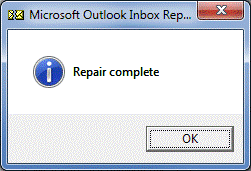
–Click OK when the repair has been completed:
Step 4: Post Repair Scenario: It is the time to discuss the post-repair scenario. ScanPST.exe can easily fix minor issues like header inconsistencies, index mismatches, etc.
But, in case, if the corruption degree is complex, then it may fail to fix the issues. In such a scenario, the user needs a PST repair tool like Stellar Repair for Outlook.
Why ScanPST.exe May Fail to Fix Corruption Issues?
Nothing is wrong in saying that Scanpst is the first-aid remedy provided by Microsoft to fix corruption issues in the PST file. But this ‘free utility’ sometimes fails to deliver the desired results. Some of the factors which prevent Scanpst to repair Outlook data files include the following:
- Large-sized PST files: Scanpst is the manual process and consumes lot of time when it comes to repair a large Outlook data file (.pst). Repairing a large file means consuming substantial time and during this process Scanpst may miss a few email messages and fails to provide the intended action.
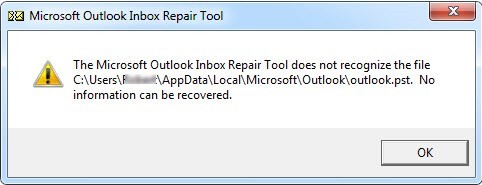
- Severely Damaged PST Files: The Inbox Repair Tool cannot always fix PST files that are severely damaged.
- Networked and Encrypted PST files: Scanpst may occasionally fail to recognize the problem in networked and encrypted files and so unable to produce the desired intent.
What If Scanpst.exe Does Not Work?
‘How to repair corrupt PST files when Scanpst.exe tools fails’ is a common query by Outlook user. Well, in such a case, we can use a professional PST repair tool such as Stellar Repair for Outlook.
This program uses powerful algorithms to solve corruption issues in any PST file. It can repair not only a large PST file quickly, but also scan and recover inaccessible or encrypted files.
The user also has the option to export the repaired file in different formats like MSG, HTML, EML, RTF, etc.
USP’s of Stellar Repair for Outlook:
- Friendly GUI
- Repairs a corrupt .pst file in three steps–Scan, Repair & Save
- Capable of fixing an oversized PST
- Can repair a severely-corrupt PST
- Recovers all mailbox items like including emails, attachments, contacts, etc.
- Restores the deleted emails
- Support available
Conclusion
In the above guide we have explored that although ScanPST.exe is a built-in functionality offered by Microsoft to handle corruption issues in PST files. But it occasionally fails to respond as intended.
It may fail to repair an oversized pst file. This utility may not be able to fix corruption caused by a malware attack. This scenario poses a threat to the valuable data.
In such a case, we can consider using an expert-recommended PST Repair tool like Stellar Repair for Outlook. This software is fast and easy to use.
It is worth mentioning that this tool is recommended by Microsoft MVPs. This tool is based on advanced algorithms to repair files infected with severe or complex corruption issues.